 LMS
LMS
Last updated on 01st Oct 2026| 11399

- Introduction to Software Testing
- Understanding Software Testing Fundamentals
- Types of Software Testing Every Beginner Should Know
- Software Testing Life Cycle and Testing Process
- Learning Manual Testing Techniques and Tools
- Introduction to Test Automation and Automation Tools
- Bug Reporting, Tracking, and Defect Management
- Essential Skills and Career Preparation for Software Testers
- Conclusion: Starting a Career in Software Testing
Introduction to Software Testing
Software testing is a critical part of the software development lifecycle that focuses on verifying whether an application works as expected and identifying defects before it reaches users. It involves examining software functionality and reliability to ensure that applications meet defined requirements. Beginners can start by learning fundamental concepts such as test cases, test scenarios, test plans, defect reporting, and different testing techniques. Software testing includes both manual and automated approaches, with tools such as Selenium, Postman, JIRA, and other testing platforms commonly used in professional environments. Understanding the software testing lifecycle and gaining practical experience through real-world projects can help beginners develop the skills required for entry-level QA and testing roles. A strong foundation in testing principles, attention to detail, analytical thinking, communication, and problem-solving can further prepare learners for a successful software testing career. Beginners looking for structured learning can explore the Software Testing Course to develop practical knowledge and industry-relevant testing skills. This tutorial covers the essential concepts, testing types, processes, tools, skills, and career preparation steps that beginners need to understand when starting their journey in software testing.
Understanding Software Testing Fundamentals
Software testing fundamentals provide beginners with the basic knowledge required to evaluate software quality and identify issues before applications are released to users. For a structured introduction to these concepts, beginners can explore the Software Testing Tutorial for Beginners, which helps build a clear understanding of testing practices. Testing involves checking whether software meets functional requirements, performs reliably, and delivers the expected results under different conditions. Beginners should understand important concepts such as test cases, test scenarios, test data, test plans, expected results, actual results, and defect reports. It is also important to understand the difference between verification and validation and how testing fits into the software development lifecycle. Basic testing principles include testing early, maintaining systematic test coverage, identifying defects, and documenting test results clearly. Candidates should also become familiar with functional and non-functional testing concepts and understand how testers collaborate with developers, business analysts, and other project teams. Building a strong foundation in these concepts helps beginners approach testing tasks systematically and prepares them for practical testing activities in real-world software projects.
Types of Software Testing Every Beginner Should Know
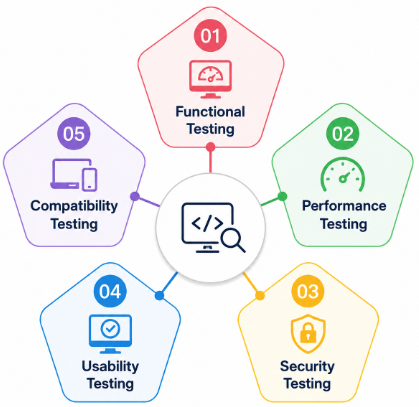
- Understanding Functional Testing: Learn how functional testing verifies whether software features work according to specified requirements. Beginners should understand techniques such as unit testing, integration testing, system testing, and acceptance testing.
- Learning Non-Functional Testing: Explore testing areas that evaluate application characteristics such as performance, usability, reliability, compatibility, and security rather than specific business functions.
- Understanding Manual Testing: Learn how testers manually execute test cases, identify unexpected behavior, document results, and report defects without relying on automated scripts.
- Introduction to Automation Testing: Understand how automated testing tools and scripts can execute repetitive test cases efficiently. learners can explore the Software Testing Course. explore tools such as Selenium and learn basic automation concepts. For structured learning and practical exposure to different testing approaches.
- Learning Regression and Retesting: Understand how regression testing verifies that new code changes have not affected existing functionality, while retesting confirms that previously reported defects have been successfully fixed.
- Exploring Smoke and Sanity Testing: Learn how smoke testing checks whether a new build is stable enough for further testing, while sanity testing focuses on verifying specific changes or functionality after updates.
Get Your Software Testing Certification by Learning from Industry-Leading Experts and Advancing Your Career with ACTE’s Software Testing Course.
Software Testing Life Cycle and Testing Process
- Requirement Analysis: Begin the testing process by reviewing project requirements and understanding what the application should accomplish. Testers identify testable requirements, clarify uncertainties, and determine the scope of testing.
- Test Planning: Define the testing strategy, objectives, resources, timelines, tools, and testing approaches. A clear test plan helps the team organize testing activities and establish measurable quality goals. In Agile projects, teams can also benefit from Agile Methodologies and Principles to align testing activities with iterative development practices.
- Test Case Design: Create detailed test cases and test scenarios based on application requirements. Include test data, expected results, and different conditions to achieve effective test coverage.
- Test Environment Setup: Prepare the required hardware, software, databases, browsers, devices, testing tools, and application builds needed to execute test cases in a suitable environment.
- Test Execution: Execute planned test cases, compare actual results with expected results, and document the outcome of each test. Testers should record failures accurately for further investigation.
- Defect Reporting and Tracking: Report identified defects with clear descriptions, reproduction steps, screenshots, severity, and priority. Track defects through their lifecycle until developers resolve and testers verify them.
- Test Closure: Review testing results, analyze defect status, document lessons learned, and prepare test summary reports. Test closure helps determine whether the application meets the required quality standards before release.
Learn Software Testing Training Course to Build Your Skills
Weekday / Weekend BatchesSee Batch DetailsLearning Manual Testing Techniques and Tools
- Understanding Test Case Design: Learn how to create clear and effective test cases based on application requirements. Include test steps, test data, expected results, and actual results to ensure systematic test execution.
- Practicing Test Execution: Execute test cases manually across different application features and document the results accurately. Compare actual behavior with expected outcomes to identify potential defects. Once these fundamentals are established, learners can progress toward automation by exploring the Best Selenium Tutorial.
- Learning Defect Reporting: Develop the ability to report bugs with clear descriptions, reproduction steps, severity, priority, screenshots, and relevant supporting information so developers can investigate and resolve issues efficiently.
- Using Bug Tracking Tools: Gain practical experience with tools such as Jira, Bugzilla, or similar platforms to create, assign, track, update, and close defects throughout the testing lifecycle.
- Understanding Different Testing Techniques: Practice techniques such as boundary value analysis, equivalence partitioning, exploratory testing, smoke testing, sanity testing, and regression testing to improve test coverage.
- Working with Testing Documentation: Learn to prepare test plans, test scenarios, test cases, defect reports, and test summary reports. Clear documentation helps testing teams communicate results and maintain consistent quality standards.
Introduction to Test Automation and Automation Tools
- Understanding Test Automation: Learn how automated testing uses scripts and specialized tools to execute test cases, validate application functionality, and reduce repetitive manual testing efforts.
- Learning Selenium: Explore Selenium for automating web applications and understand how to create test scripts, locate web elements, perform browser actions, and validate application behavior.
- Exploring Playwright and Cypress: Gain an overview of modern automation tools such as Playwright and Cypress for testing web applications, handling browser interactions, and validating different user workflows.
- Integrating Automation with CI/CD: Understand how automated tests can be integrated into CI/CD pipelines using tools such as Jenkins or GitHub Actions. Learners can further explore these practices through the Azure DevOps Tutorial to understand how automation can support continuous integration, testing, and deployment.
- Learning Programming for Automation: Develop basic programming skills in languages such as Java, Python, or JavaScript to create effective automation scripts and work with testing frameworks.
- Understanding Automation Frameworks: Learn the fundamentals of test automation frameworks, including reusable components, test data management, page object models, reporting, and test execution.

Get JOB Oriented Software TestingI Training for Beginners By MNC Experts
- Instructor-led Sessions
- Real-life Case Studies
- Assignments
Bug Reporting, Tracking, and Defect Management
- Identifying Software Defects: Learn how to identify unexpected application behavior by comparing actual results with expected results. Testers should carefully analyze failures to determine whether they represent genuine defects.
- Creating Clear Bug Reports: Document defects with a meaningful title, detailed description, reproduction steps, expected and actual results, severity, priority, screenshots, and relevant environment information.
- Understanding Defect Severity and Priority: Learn the difference between severity and priority. Severity indicates the impact of a defect on the application, while priority determines how quickly the issue should be addressed.
- Using Bug Tracking Tools: Practice using tools such as Jira, Bugzilla, or similar platforms to create, assign, monitor, update, and close defects throughout the defect management process. Beginners can strengthen these practical skills through a structured Software Testing Course.
- Following the Defect Life Cycle: Understand common defect stages such as New, Assigned, Open, Fixed, Retest, Reopened, Verified, and Closed to track issues systematically from discovery to resolution.
- Collaborating with Developers: Communicate defect details clearly with developers and project teams, provide additional information when required, and verify fixes through retesting before closing reported issues.
Want to Master Software Testing? Explore the Software Testing Master Program Offered at ACTE Today!
Essential Skills and Career Preparation for Software Testers
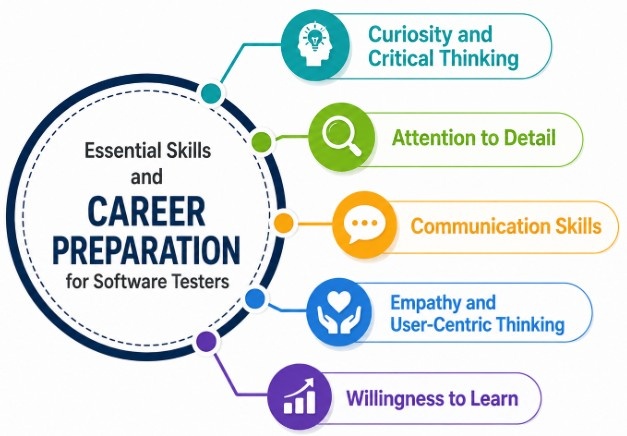
- Build Strong Testing Fundamentals: Develop a clear understanding of SDLC, STLC, test cases, test scenarios, defect life cycle, testing methodologies, and different types of software testing.
- Develop Manual Testing Skills: Practice test case creation, test execution, regression testing, exploratory testing, defect reporting, and other manual testing techniques through practical projects.
- Learn Automation Testing: Gain basic knowledge of automation tools such as Selenium, Playwright, or Cypress and learn a programming language such as Java, Python, or JavaScript for creating automation scripts.
- Learn API and Database Testing: Practice API testing using tools such as Postman and develop basic SQL skills to validate backend data and verify application functionality.
- Develop Communication and Analytical Skills: Improve problem-solving, attention to detail, teamwork, communication, and analytical thinking skills. Testers interested in expanding into security-focused quality practices can also explore Cybersecurity & Tutorial to understand broader application security concepts.
- Understand Testing Tools: Become familiar with commonly used tools such as Jira, Git, GitHub, Postman, Selenium, and test management platforms to improve your practical testing capabilities.
- Build Practical Testing Projects: Work on real-world or academic projects to create test cases, identify defects, perform functional and regression testing, and document testing results.
- Prepare for Software Testing Interviews: Practice manual testing concepts, automation basics, SQL queries, API testing, scenario-based questions, and common QA interview questions to improve your confidence.
Conclusion: Starting a Career in Software Testing
Starting a career in software testing requires a strong foundation in testing concepts, practical experience, technical skills, and effective problem-solving abilities. Beginners can begin by learning software testing fundamentals, different testing types, the software testing life cycle, manual testing techniques, automation basics, API testing, database testing, and defect management. Hands-on practice through real-world projects can help learners understand how testing processes are applied in professional development environments. Building knowledge of tools such as Selenium, Postman, Jira, Git, and other testing platforms can further strengthen practical capabilities. Along with technical knowledge, communication, analytical thinking, attention to detail, teamwork, and adaptability are valuable skills for software testing professionals. Candidates can improve their career prospects by creating a strong portfolio, preparing an effective resume, gaining relevant certifications, and practicing common QA interview questions. As software development practices continue to evolve, testers should regularly update their knowledge of automation, Agile methodologies, CI/CD, cloud technologies, and modern testing tools. Learners seeking structured training and practical exposure can explore the Software Testing Course to strengthen their industry-relevant testing skills. With consistent learning, practical experience, and continuous skill development, beginners can build a strong foundation and pursue opportunities in software testing and quality assurance.